 Product Documentation
Appearance
Installing ybtools on Windows
Make sure that Java 1.8 64-bit is installed on your client system. See Installing the Java Runtime Environment.
Follow these steps to install the client tools on a Windows client system:
Download the Windows package from the SMC. Go to Configure > Drivers and Tools > Client Tools.
If necessary, copy the downloaded package to the client system.
As an Administrator user, double-click the downloaded file to start the installer (for example,
ybtools-5.2.4-20201208023004.windows.x86_64.exe).
The Client Tools Setup Wizard starts up.
- Click through the Setup Wizard and respond to all of the prompts. Note the following options:
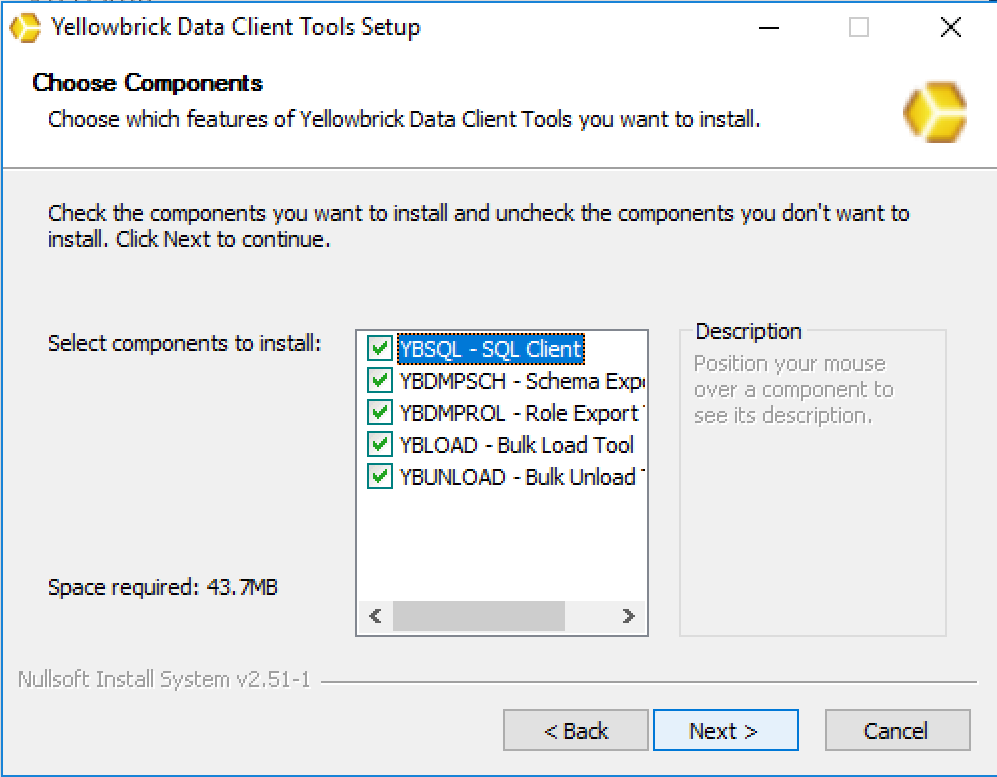
You can select the tools to install:
You can choose an installation directory:
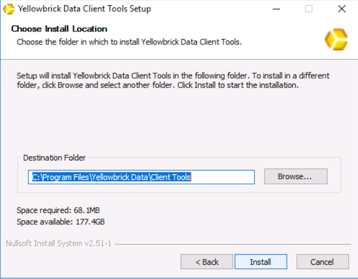
The default installation location is as follows:
C:\Program Files\Yellowbrick Data\Client ToolsOptionally, set the
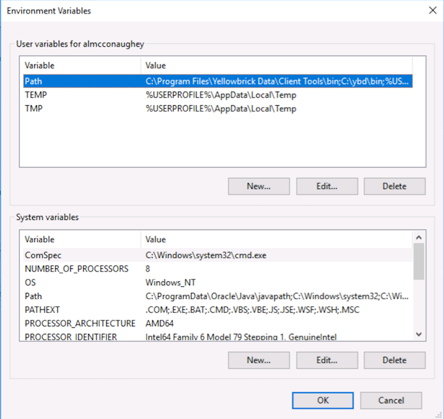
Pathvariable to point to the installation directory.Right-click the Start menu.
Select System > Advanced System Settings > Environment Variables...
Edit the Path variable and add the client tools location to the beginning of the string. In this example, the default location is added.
Run a simple ybsql command and check for the following WARNING message:
WARNING: Console code page (437) differs from Windows code page (1252)
        8-bit characters might not work correctly....
To change the console code page:
- Each time you open a new command line console, set the code page by entering (for example):
chcp 1252at the command prompt, where 1252 is the Windows Latin 1 (ANSI) code page. Set the code page for your environment, as indicated by the warning message. If you are using Cygwin, you can put this chcp command in /etc/profile.
- Set the console font to
Lucida Console; the raster font does not work with the ANSI code page.
Parent topic:Installing ybtools