
Appearance
Uninstalling ybtools
If you need to remove client tools from your system, follow these steps.
Uninstall on Linux
To uninstall the client tools on Linux, run the following command:
- Ubuntu:
$ sudo apt-get remove -y ybtools- CentOS:
$ sudo yum remove ybtoolsNote: You can use the rpm -qa command to list all installed RPMs.
For example, on an Ubuntu client:
$ sudo apt-get remove -y ybtools
Reading package lists... Done
Building dependency tree
Reading state information... Done
The following packages were automatically installed and are no longer required:
  bsh libasm3-java libganymed-ssh2-java libisl13 libjackrabbit-java libjline-java libjna-java libjna-jni libjna-platform-java libjsch-agent-proxy-java libjsoncpp0v5 liblldb-3.8 libllvm3.8
  libmaven-scm-java libnetbeans-cvsclient-java libruby2.2 libsisu-guice-java llvm-3.8 llvm-3.8-dev llvm-3.8-runtime nagios-plugins-common python3-bcdoc ruby2.1-dev
Use 'sudo apt autoremove' to remove them.
The following packages will be REMOVED:
  ybtools
0 upgraded, 0 newly installed, 1 to remove and 325 not upgraded.
After this operation, 0 B of additional disk space will be used.
(Reading database ... 153987 files and directories currently installed.)
Removing ybtools (6.1.2-a8363b32.1234) ...
Uninstall on Windows
On the Start menu, go to Control Panel > Uninstall a Program, then select the tools you want to remove.
Uninstall on macOS
Follow these steps:
- Open Yellowbrick Client Tools:
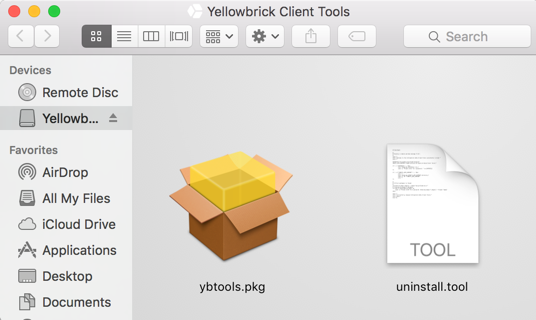
- Run the
uninstall.toolscript.
Welcome to the Yellowbrick Data Client Tools uninstaller script.

Removing /etc/paths.d/yellowbricktools file.
Please enter <user>'s password: <password>

Removing /Applications/Yellowbrick Data/Client Tools/ directory.

Forgot package 'com.yellowbrick.ybtools.' on '/'.

Successfully removed Yellowbrick Data Client Tools.
Done.

[Process completed]
Uninstall on Docker
To uninstall the tools, simply remove the tools container using the following commands:
# Check if your container is running
docker ps

# If it shows up in the list, use the following command; otherwise,skip this step
docker stop <container-name>

# Remove the container
docker rm <container-name>

# List all images present in your system
docker images

# Find the image id of tools images and remove it
docker rmi <image-name:tag>