 Product Documentation
Appearance
Accepting the Network Interface
Using the AWS Console, follow these steps to accept the network interface.
From the Console Home page, go to Services > Direct Connect (under Networking & Content Delivery).
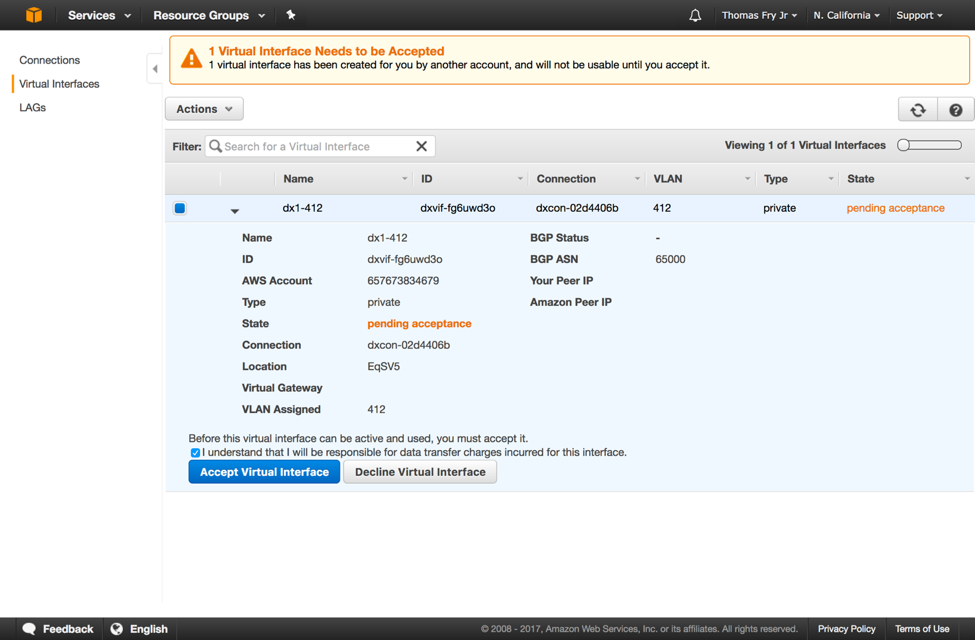
Go to the Virtual Interface page.
The Yellowbrick virtual interface ID will be listed as pending acceptance.
- Click the arrow to expand the interface, check the I understand… box, and click Accept Virtual Interface.
- Select the AWS virtual private gateway to use for this connection and click Accept.
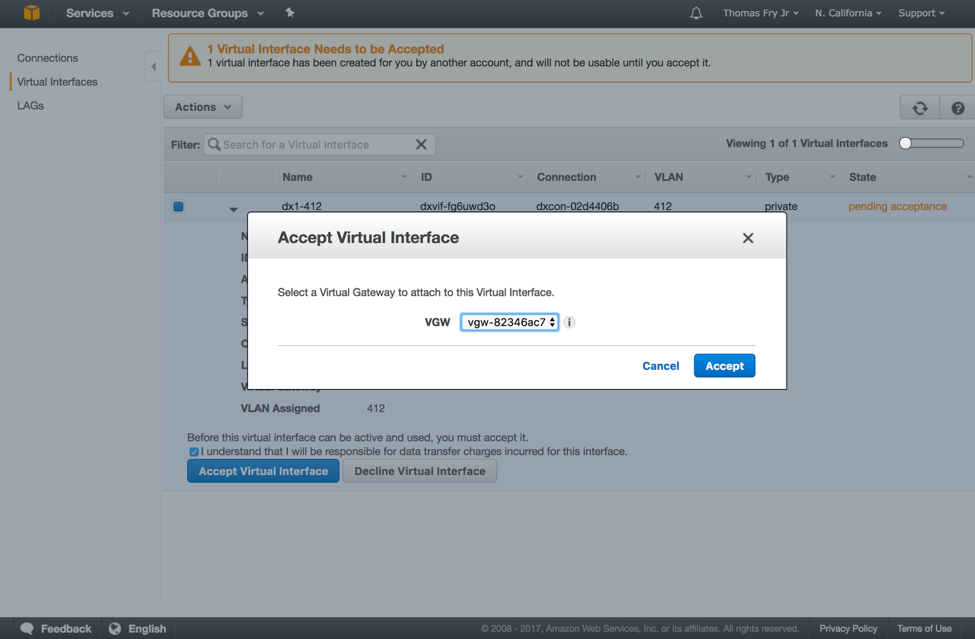
Note: You create virtual private gateways on the VPC Dashboard, under VPN Connections > Virtual Private Gateways.
After you accept the virtual interface, the state will change to pending while AWS completes the request.
Parent topic:Connecting AWS to Yellowbrick